
AI settings
Within OGSM.online, we use AI to help users create and improve an OGSM. As a super admin, you decide which AI features are available and which AI model they use.
Confidential information and AI
AI assistant
The AI assistant can answer questions about the OGSMs the user has access to. When this feature is enabled, the AI provider has access to those OGSMs.
Generating and improving OGSM items
Users can have items in an OGSM generated. They can also have the wording of items improved.
When items are generated, input is sent to the AI provider. For example, the AI can generate strategies based on the objective and the goals. The user always has the option to remove confidential data before it is sent to the AI provider.
When the wording of an item is improved, the current wording is sent to the AI provider.
Enabling and disabling AI functionality
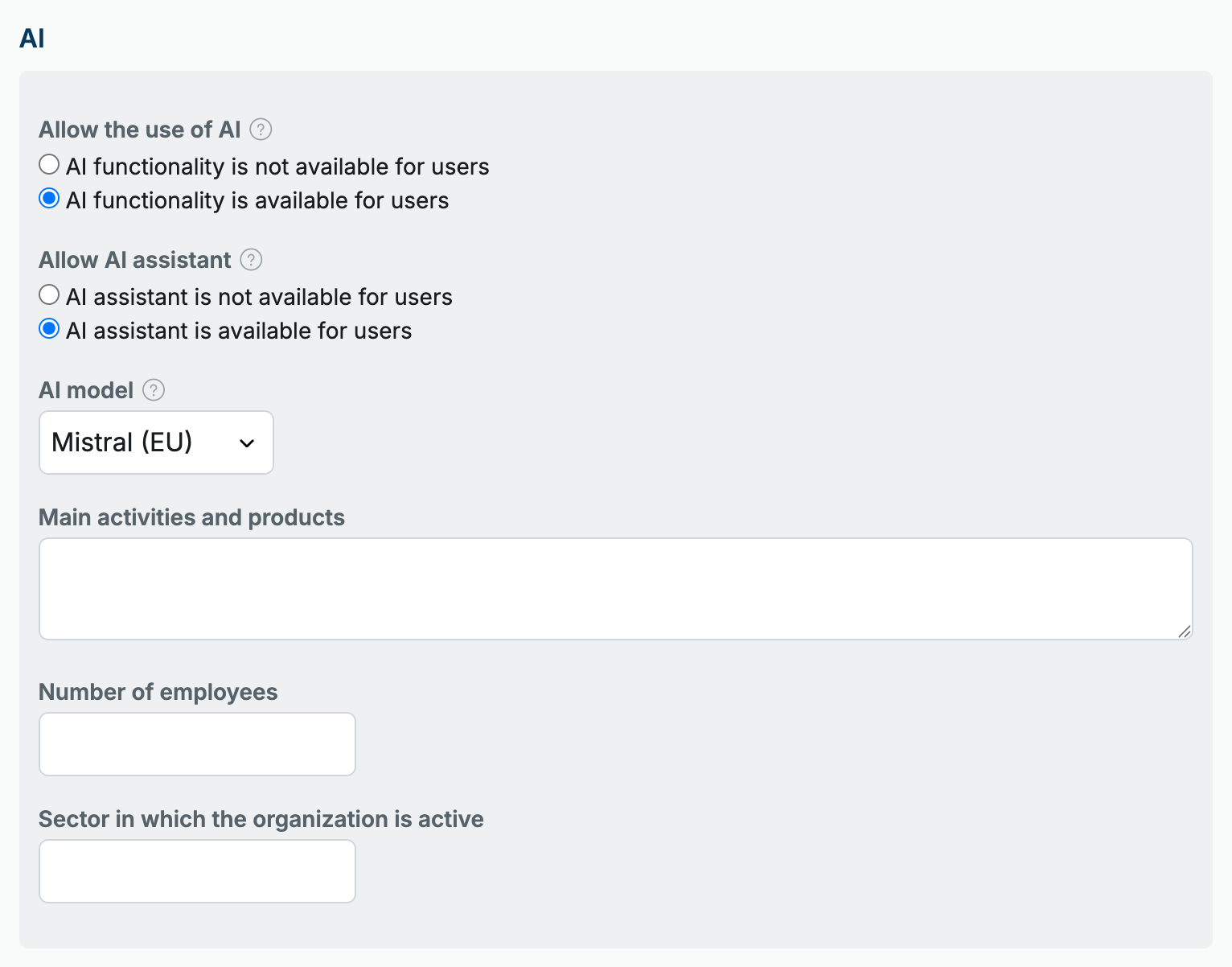
You manage the AI features with two settings:
- Allow the use of AI turns all AI features on or off. This setting is on by default and is available on every subscription.
- Allow AI assistant turns the AI assistant on or off. The AI assistant is available on the Pro subscription and is off by default. You only see this setting when the use of AI is allowed.
To change the settings:
- Go to the Admin > OGSM menu.

- Change the setting under Allow the use of AI and, on a Pro subscription, Allow AI assistant.
Choosing the AI model
By default, OGSM.online uses Mistral. This is a European AI provider. Data from the OGSMs and questions from users are never used to train the AI models. With Mistral you have nothing to arrange yourself: the requests run through the OGSM.online account.
If you prefer a different model, you can choose Claude or ChatGPT. Your choice applies to all AI features: the AI assistant and the AI suggestions for titles and new items. One exception: when a user adds a Word or PowerPoint file to a conversation with the AI assistant, Mistral always converts that file to text.
- Go to the Admin > OGSM menu.
- Under AI model, choose Mistral (EU), Claude (US) or ChatGPT (US).
- If you choose Claude or ChatGPT, enter a key from your own account with that provider under API key.
For Claude, create an account at console.anthropic.com, add credit under Billing and then create a key via Settings, API keys. For ChatGPT, do the same at platform.openai.com: add credit under Billing and create a key via API keys.
The provider bills the usage directly to you. Without a valid key, the AI features do not work. If you switch providers later, you enter a new key: a key is never sent to a provider other than the one that issued it.
Claude and ChatGPT are American providers. The processing of your data is then governed by the terms of your own account with that provider. Check beforehand whether that fits your organization’s policy on confidential information.
Provide additional information to the AI assistant
The better the AI assistant knows your organization, the better its answers fit your situation. So fill in the main activities and products, the number of employees and the sector in which the organization is active in the Admin > OGSM menu. This information forms the context on which the AI assistant bases its answers.
