
Copy an OGSM
With Copy you create a new OGSM based on an existing one. You use it for three different things: building a new annual plan, adding to a draft OGSM, or capturing the plan as an archive.
Not sure yet whether to build on this OGSM or start from scratch, or do you want to set up a new annual plan for several teams at once? Read the article: Start a new annual plan.
Only the administrator of a team can copy an OGSM. You can only place the new OGSM in a team you administer.
- Open the OGSM.
- Click Copy in the top right of the screen.

The Make copy screen opens with the question What do you want to do?. You choose one of these three options:
- Create a new annual plan. Start a new OGSM based on this OGSM. You decide per item what you take along and what you leave behind.
- Add to an existing draft. Add items from this OGSM to an OGSM that is already in draft.
- Make a full copy (snapshot). Capture this OGSM as a separate copy, for instance as an archive or a backup.
The questions below change with your choice, and so does the button at the bottom: Create annual plan, Add to OGSM or Make copy.

Create a new annual plan
- Choose Create a new annual plan.
- Under Where does the new OGSM go?, select the Team. By default this is the team of the original.
- Check the Name. It is already filled in with the coming year: OGSM.online turns ‘Annual plan 2026’ into ‘Annual plan 2027’.
- Under What do you take along?, decide per item whether you include, link or copy it. See below.
- Click Create annual plan.
The new OGSM gets the status Draft. That way you can finish the plan before presenting it as the active plan. Read the article: OGSM status: Draft, Active, Inactive.
Add to an existing draft
If you are already working on a new OGSM, you do not have to start over. You pull the items you still need out of the old OGSM.
- Choose Add to an existing draft.
- Under Which draft OGSM are you adding to?, select the OGSM. The list only contains OGSMs with the status Draft in teams you administer.
- Under What do you take along?, decide per item what gets added.
- Click Add to OGSM.
If you do not have a draft OGSM yet, this option cannot be selected. It then says: ‘You do not have a draft OGSM to add to yet.’
An OGSM has only one objective. If the draft OGSM already has one, the objective and the goals are left out. The screen shows this next to the objective: ‘This draft OGSM already has an objective’.
Choosing per item: do not include, link or copy
For a new annual plan and for adding to a draft, you choose per type of item what happens to it: Objective, Goals, Strategies, KPIs and Actions. For each item you have three options:
- Do not include. The item is not taken along.
- Link. The item appears on both OGSMs. Changes show up in both places. Handy for ongoing actions and KPIs.
- Copy. The item is taken over as a separate item. Changes to the copy have no effect on the original.
By default the strategies are copied and the other items are linked. The strategies are the heart of the plan you are about to rewrite, while KPIs and actions often carry over.
You choose freely for each type of item. What you do with the objective or the strategies does not fix anything for the items below them. For example, you can copy the strategies to rewrite them and link the ongoing KPIs and actions below them.
Two kinds of items are never taken along: completed actions and archived items. With an archived item, everything below it stays behind as well. Read the article: Archive OGSM elements.
Make a full copy (snapshot)
A full copy is a snapshot of the entire OGSM, meant as an archive or a backup.
- Choose Make a full copy (snapshot).
- Under Where does the copy go?, select the Team and type the Name.
- Under What do you take along?, choose one of these two options:
- Only the OGSM. Every item, without the progress reports and the change history.
- The OGSM with history and reports. Every item, including the progress reports and the change history of each one.
- Click Make copy.

Every item becomes separate from the original. Links with other OGSMs are lost. Unlike an annual plan, archived and completed items are taken along: a snapshot captures the OGSM as it was.
The copy gets the status Inactive. That way it stays exactly as the OGSM looks today: you can no longer edit the copy, and it does not count as a second active OGSM of the team.
What was taken along
After the copy is made, This is what happened: shows per type of item how many were copied and how many were linked. That way you can check at a glance whether the result is what you intended. If something is missing, it is usually a completed action or an archived item.
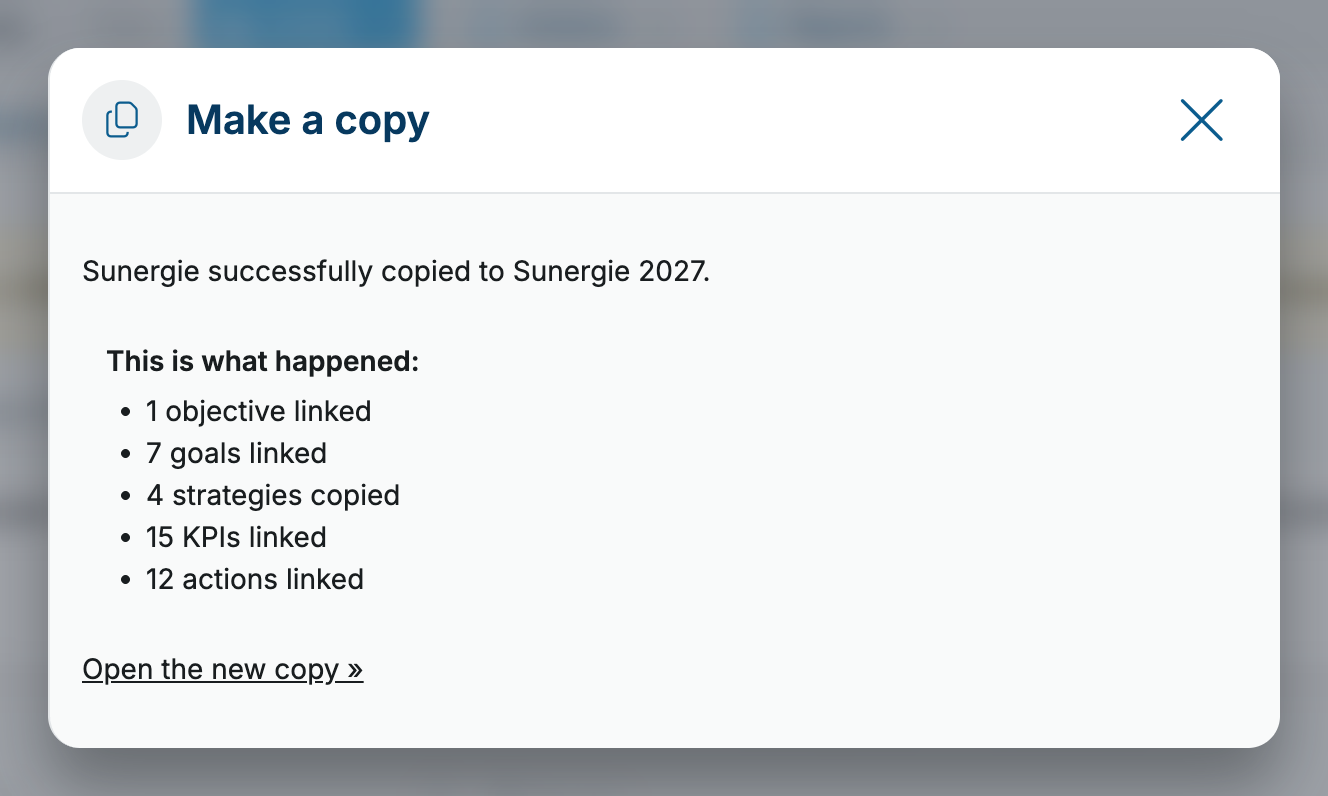
The link below it takes you straight to the new OGSM, or to the one you added to.