
Start a new annual plan
Lees dit artikel in het Nederlands
When the planning period ends, you make a new plan. There are two routes: you start from scratch, or you build on the OGSM you have now. Which route fits depends on how much your strategy changes.
Starting from scratch
Choose this when the new plan is genuinely different from the previous one: a new course, a new team, or a first OGSM. You start with an empty canvas and work the plan out from top to bottom.
- Creating an OGSM describes how to add a new OGSM to a team.
- Want to get going faster? Read Generating an OGSM with AI.
- Is the plan already in Excel? Read Import OGSM from Excel.
Building on an existing OGSM
Choose this when the strategy largely holds. You take along the items that still apply and leave the rest behind. That saves time and keeps the line between the years visible.
- Open the OGSM of the period that is ending.
- Click Copy in the top right of the screen.
- Under What do you want to do?, choose Create a new annual plan.
- Decide per item whether you include, link or copy it.
- Click Create annual plan.
You can also start from the team dashboard. In the OGSMs block, click Add OGSM and under What do you want to start with? choose A copy of an existing OGSM. You then pick which of the team’s OGSMs to build on and decide per item what you take along, in the same way.
The difference between linking and copying matters here. A linked item sits on both OGSMs: changes show up in both places. A copied item stands separate from the original. So you usually link ongoing KPIs and actions, while you copy strategies in order to rewrite them for the new year.
Completed actions and archived items are not taken along. The new annual plan therefore starts with a clean list.
The full explanation is in Copy an OGSM.
A new annual plan for several teams at once
If you work with an organizational structure, you often want every team to start on its new annual plan at the same time. Instead of each team creating an OGSM itself, you set up the draft OGSMs in one go.
- Go to the team dashboard of the team you roll out from, for example the management team.
- Click Manage team in the top right and choose Roll out new annual plans.
- Under Which teams get a new annual plan?, select the teams. You first see the teams directly below this team. With Show other teams you can also choose other teams you administer.
- Under What are the new OGSMs called?, enter the name. Every new OGSM gets this name.
- Under What do the new OGSMs start with?, choose Filled with items from an existing OGSM or Empty.
- If you choose filled, decide per item whether it is left out, linked or copied. If the team has more than one OGSM, first choose the source under Which OGSM does it come from?.
- Click Roll out.
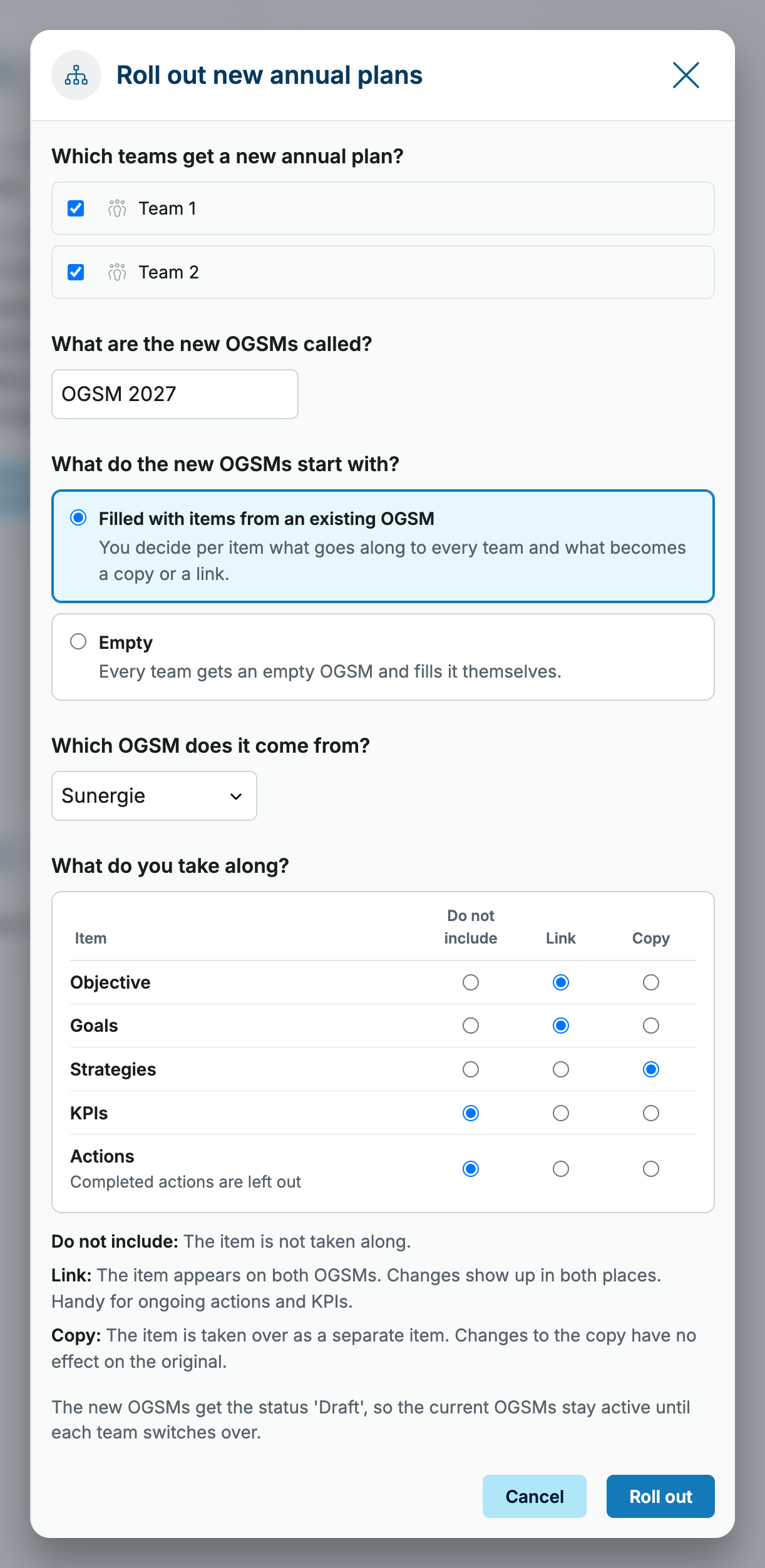
Every team you chose gets a new OGSM with the status Draft. The current OGSMs stay active until each team switches over.
You can only roll out to teams you administer. The menu item only appears when the team itself has an active or draft OGSM. Tip: first finish your own team’s annual plan as a draft. The screen suggests a draft OGSM first as the source, so you then roll out exactly that plan.
Have you already started a new plan?
Did you set up a draft OGSM in a session and do you want to pull items from the old OGSM into it? Then choose Add to an existing draft in the same screen. You do not have to start over.
Putting the new plan to work
A new annual plan gets the status Draft. That way you work the plan out at your own pace, without it being presented as the active plan and without the team receiving update emails about every change.
- Finish the plan: objective, goals, strategies, KPIs and actions.
- Set the status to Active as soon as the plan is ready to be executed.
- If the OGSM of the previous period is still active, set it to Inactive. It can then no longer be edited, but it remains available via Teams in the menu.
If an organizational structure is set up, a team can have only one active OGSM. When you set the new plan to Active, OGSM.online automatically sets the team’s previous active OGSM to Inactive. Read the article: OGSM status: Draft, Active, Inactive.