
Creating an OGSM
An OGSM is a tool within a team. So you always create a new OGSM inside an existing team. Don’t have a team yet? Then read the article Add and modify teams first.
You can only create an OGSM if you are the Administrator of the team.
Are you making a plan for a new period while an OGSM from the previous period already exists? You can build on that one instead. Read the article: Start a new annual plan.
Create a new OGSM
- Go to the team dashboard of the team you want the OGSM to be in.
- In the OGSMs block, click Add OGSM.
- If the team already has an OGSM, choose An empty OGSM under What do you want to start with?. With A copy of an existing OGSM you build on an OGSM the team already has. Read more in the article Start a new annual plan.
- Under What will the new OGSM be called?, type the name. Often this is the name of the team combined with the period, for example ‘Marketing 2026’.
- Click Add OGSM. The new OGSM appears right away in the OGSMs block on the team dashboard. Click it to fill in the content.
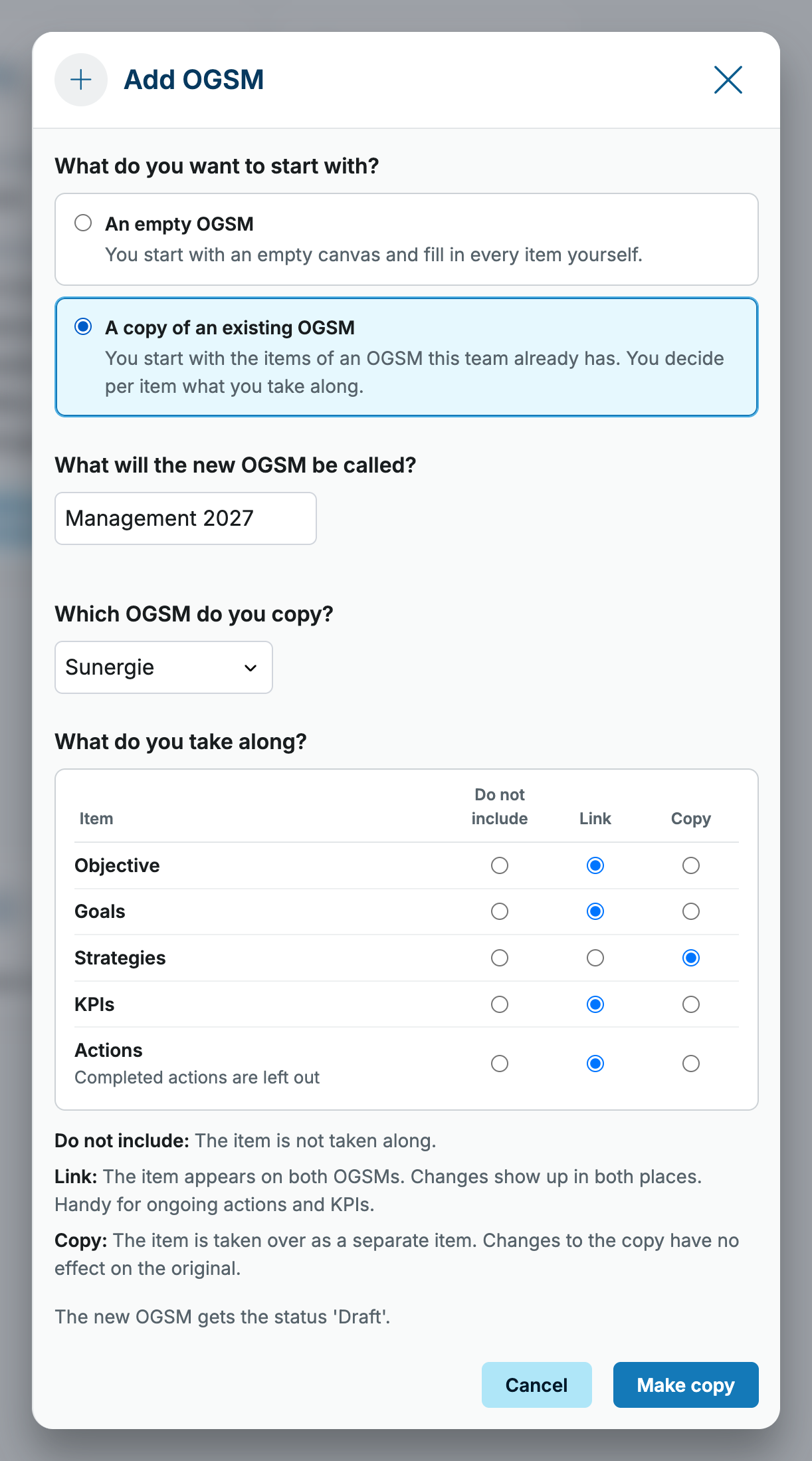
You can also add an empty OGSM via Manage team in the top right: choose Add tool > OGSM there.
By default a new OGSM has the status Draft. That way you can work on the plan calmly without it already being presented as active. Set the status to Active as soon as the plan is ready to be executed.
Next: fill in the plan
With the OGSM created, you fill it in step by step:
- OGSM overview describes the layout of the canvas and how to add and edit items.
- Objectives, Edit goal, Edit strategy, Edit KPI and Edit action explain per component how to fill in the details.
- Want to start with the help of AI? Read Generating an OGSM with AI.
- Already have the OGSM in Excel? See Import OGSM from Excel.