Strategic brief
Lees dit artikel in het Nederlands
Does your team have a parent team? Then you can see what your team’s OGSM contributes to: the strategic brief of the parent team. This keeps it clear for everyone how the plans of the different teams relate to each other.
This functionality is only available in the Pro subscription, and it also has to be enabled by the main administrator first. Please contact your administrator or contact person if you would like to extend your subscription.
Enabling
This functionality has to be enabled by the main administrator first:
- Go to Settings > OGSM.
- Switch on the option Show teams their strategic contribution to the parent team.
Making an OGSM available to child teams
As the administrator of a team with child teams, you decide which of your team’s OGSMs are available as a strategic brief:
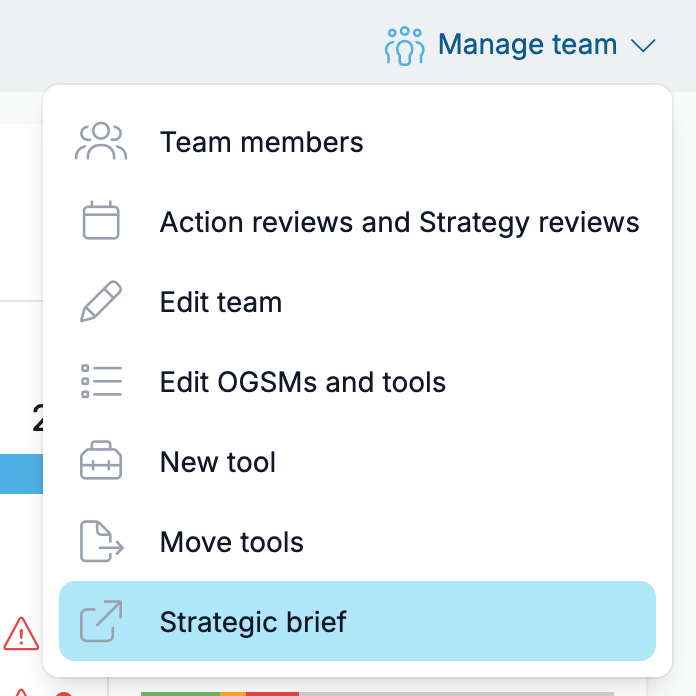
- Go to the team dashboard and click Manage team in the top right.
- Choose Strategic brief.
- Select the OGSM you want to make available to the child teams.
- Click Save.
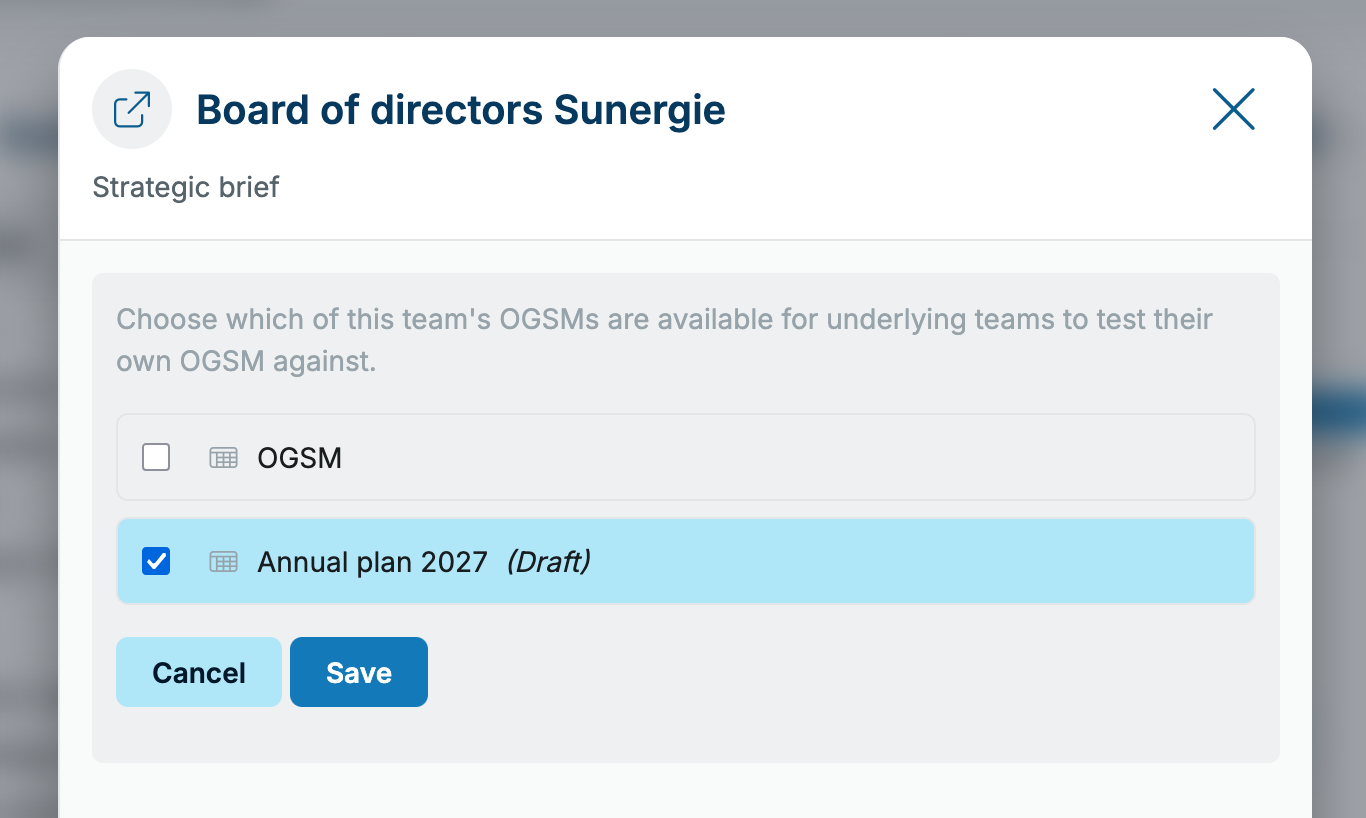
The selected OGSM (the plan only, without progress) is now visible to the child teams.
Viewing your contribution
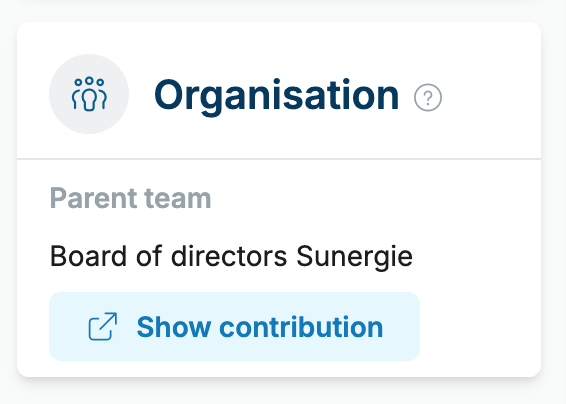
Has the parent team made an OGSM available? Then you will see the Show contribution button on the team dashboard, in the Organisation block under Parent team.
- Click Show contribution.
- Does your team have several OGSMs, or has the parent team made several OGSMs available? Then choose at the top which OGSMs you want to compare.
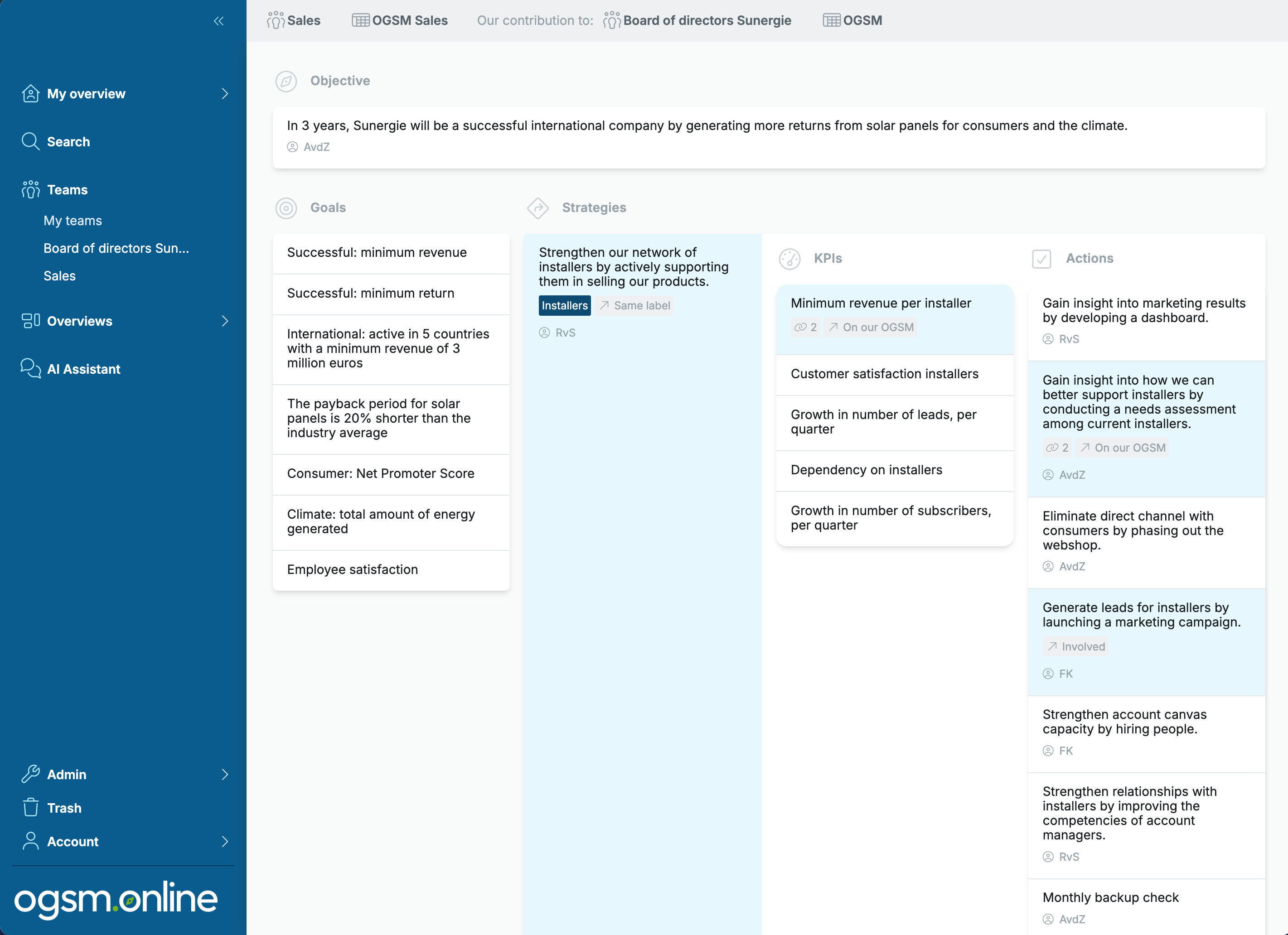
You now see the OGSM of the parent team. The elements your team contributes to are highlighted, with a label showing the reason:
- On our OGSM: this item also appears (through a link) in your team’s OGSM.
- Same label: a strategy in your team’s OGSM has the same label as this strategy.
- Involved: your team has been added to this item as a stakeholder, under Involved on the item.