
Displaying strategies in multiple OGSMs
It is possible to display a strategy in multiple OGSMs. In practice, there are two ways:
- The strategy must be visible as a strategy in another OGSM. For example, the management and the underlying department can have the same strategy, including the KPIs and actions.
- The strategy must be visible as an action in another OGSM. This can be useful if the strategy is, for example, a project and you only want to monitor the status of the project in the upper OGSM, but don’t need further details.
For both situations, any changes to the strategy will be visible in all locations. Note that also underlying items will be synced.
Displaying strategy in another OGSM
- Open the strategy.
- Click on Add relation under the heading Relationships.
- Under What do you want to do?, choose the type Strategy in the group Add as.
- Select the OGSM in which the strategy should be visible. You will see a list of the OGSMs that you have access to as a user. You cannot add strategies to OGSMs that you do not have access to. You can also search for the name of the team and OGSM. To show the strategy in several places at once, tick more than one OGSM.
- Click Save. The strategy and its KPIs and actions are now visible in the selected OGSM.

Adding strategy as an action to other OGSM
- Open the strategy.
- Click on Add relation under the heading Relationships.

- Under What do you want to do?, choose the type Action in the group Add as.
- Select the strategy where the strategy should be visible as an action. You will see a list of the OGSMs and strategies that you have access to as a user. You cannot add an action to OGSMs that you do not have access to. You can also search for the name of the team, OGSM and strategy.
- Click Save. The action is now visible in the selected OGSM.

See where the strategy appears
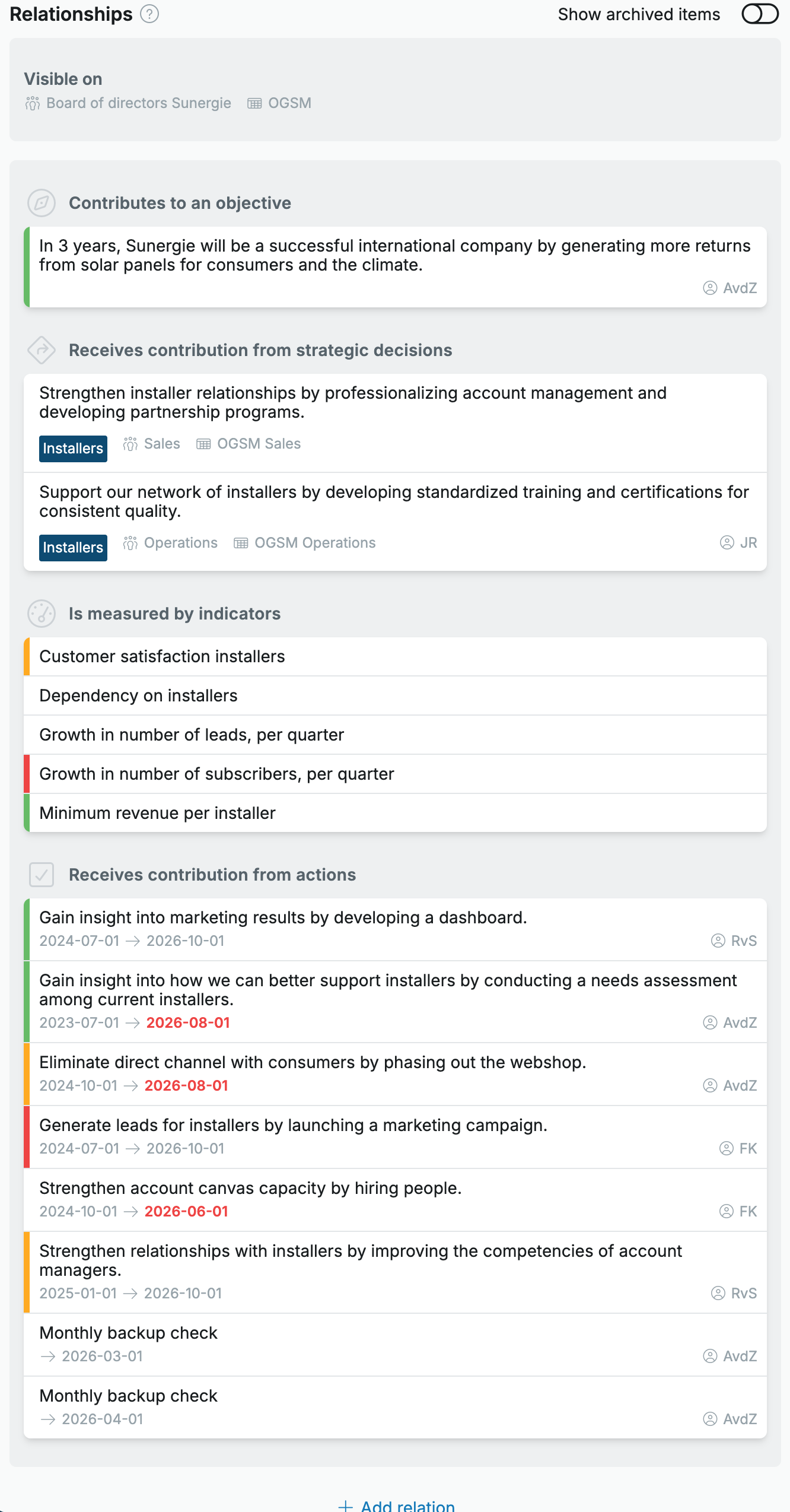
Under the heading Relationships, the block Visible on shows the OGSMs the strategy sits on. Below that you see the strategies of the parent team and the child teams that carry the same label, under Contributes to and Receives contribution from.
Edit relation
- Open the strategy.
- Under the heading Relationships, hover over the row you want to change and click the pencil icon.
- Edit the relation, or click the bin icon to take the strategy out of that OGSM. The screen spells out what removing does: the strategy disappears there along with the KPIs and actions underneath it, and stays in the other places.
Removing strategies
When you remove a strategy with the bin at the top of its detail screen, it is deleted from all OGSMs where it is visible. If the strategy sits in only one place, that is also the only way to remove it.
Also read the article: Linking items to each other.