
Linking items to each other
Lees dit artikel in het Nederlands
An item in OGSM.online rarely stands on its own. An action contributes to a strategy, a KPI measures a goal, and sometimes an action can only start once another one is finished. You find all of this on the detail screen of every item, under the heading Relationships.
What you see under Relationships
The block Relationships gathers everything an item relates to.
- Visible on: the OGSMs this item sits on. Click a name to go there directly.
- Related actions, goals or indicators: the items of the same type that sit above and below this item, as a tree. The item you opened is highlighted.
- Below that the other relations, grouped per verb and per type of item. For example Contributes to a strategy or Depends on actions.
The groups always appear in the same order: first what this item contributes to, then what contributes to this item, and finally the relations sideways. If a group holds more than ten items, click … more items to see the rest.
Show archived items at the top right also brings in the archived items.
Each related item shows which OGSMs it sits on, with the team alongside. The OGSM you have open is left out. If an item sits on more than three other OGSMs, click … more OGSMs to see the rest.
If a related item sits in an OGSM you do not have access to, you see its team, its OGSM and its type, but not its title.
Two kinds of relations
Click Add relation at the bottom of the block. The form starts with the question What do you want to do? and offers two groups:
- Add as: this puts the item on an OGSM, for example as an action under a strategy. That is also how you record that it contributes to or measures that item. The item then sits in two places and changes are visible everywhere. Read the article: Displaying actions in multiple OGSMs.
- Link to an item: this records a relation that does not change where the item sits.
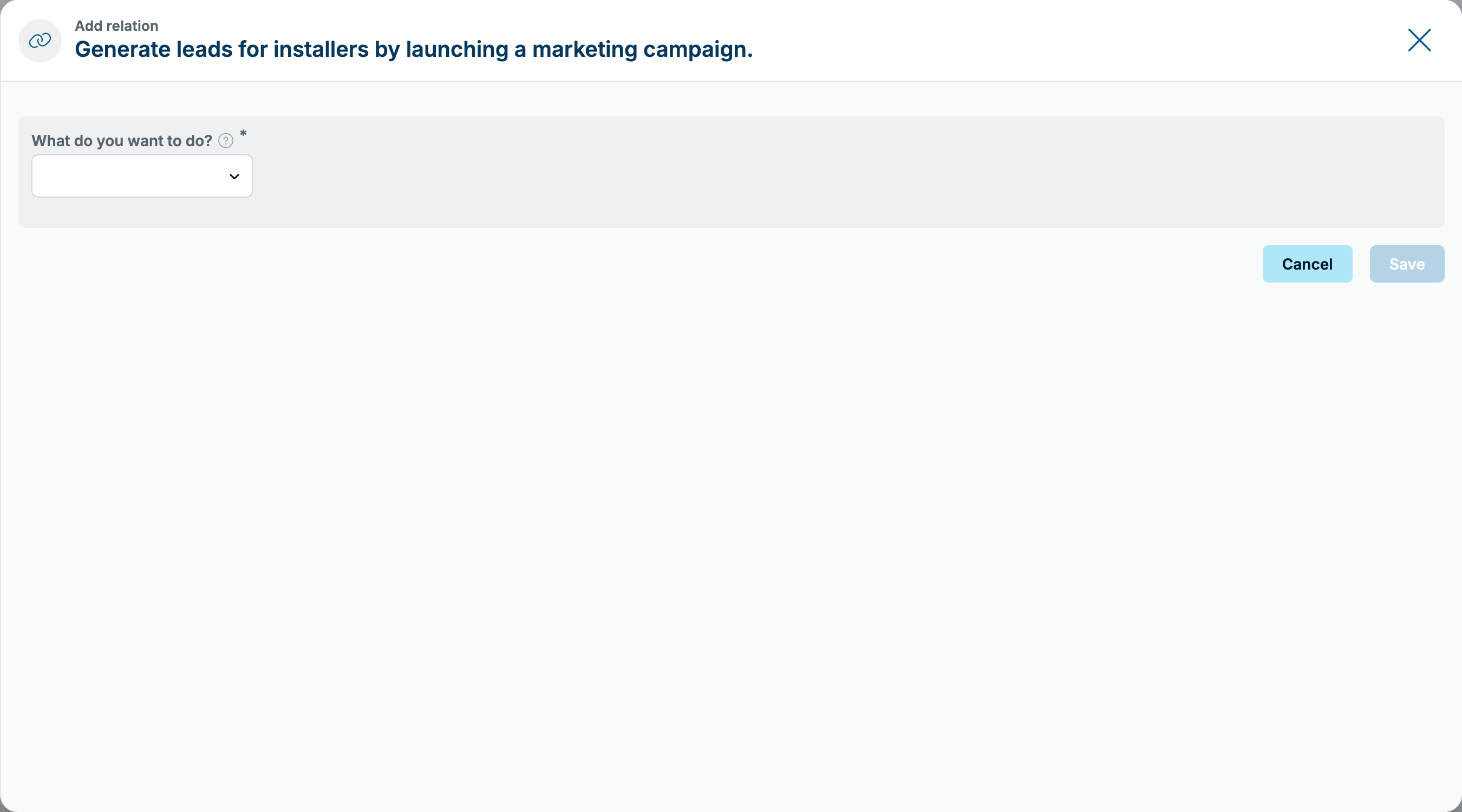
Linking an item to another item
- Open the item and click Add relation under Relationships.
- Under What do you want to do?, in the group Link to an item, choose the verb that fits:
- Depends on: this item can only move forward once the other item is finished.
- Is a prerequisite for: the other way round, the other item is waiting on this one.
- Related to: the two items have something to do with each other, without a direction.
- Select the items you want to link to. You can search by team, OGSM and item, filter by Type and tick several items at once.
- Click Save.
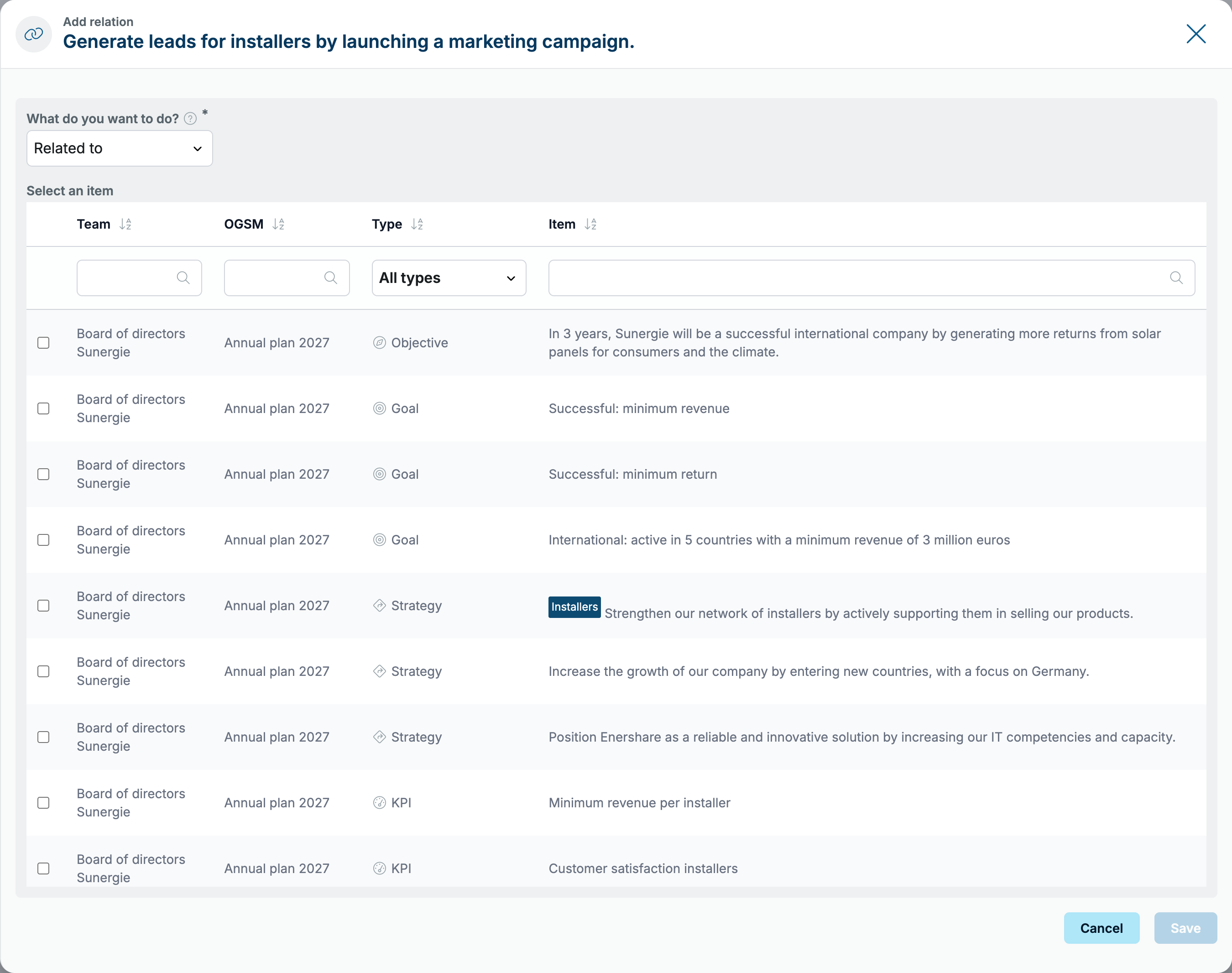
You only see items from OGSMs you have access to. You cannot link to an item that already sits above or below this one: the placement says so already.
You cannot create the relations Contributes to and Measures yourself. They appear as soon as you place an item somewhere, for example an action under a strategy or a KPI under a goal.
Editing or removing a relation
- Under Relationships, hover over the row and click the pencil icon. This works on a computer, not on a phone.
- At the top, Current relation shows what is there now, with a line underneath explaining what happens if you remove it.
- Click the bin icon to remove the relation, or pick a different relation under Edit relation.
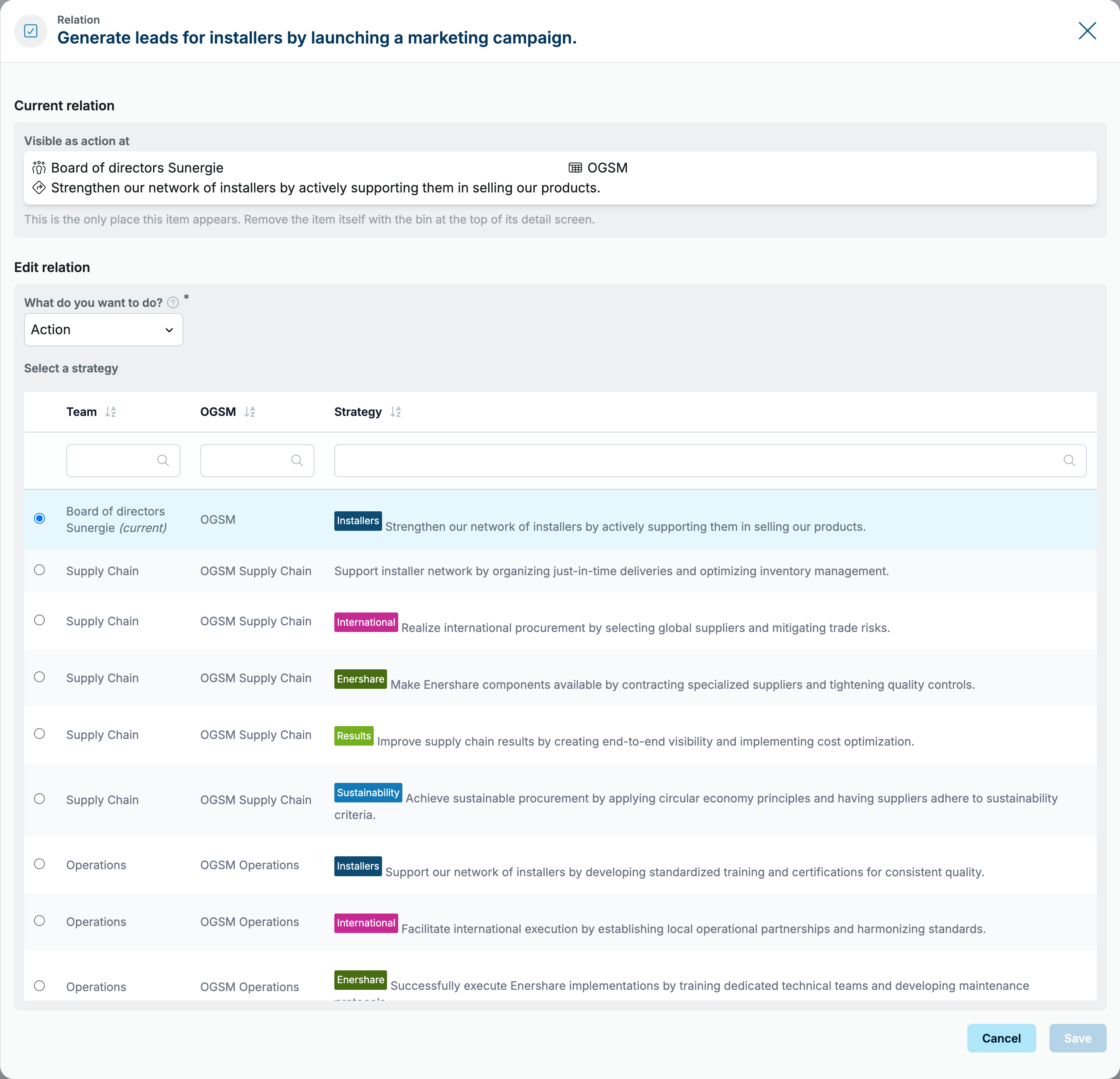
The screen distinguishes two kinds of removal:
- Remove relation: the link disappears, both items simply stay where they are.
- Remove from …: the item disappears from that one OGSM. Everywhere else it stays untouched. Any underlying items it has in that OGSM go with it.
If the item sits in only one place, you cannot remove that placement. To remove the item altogether, use the bin at the top of its detail screen.