
Latest changes
We regularly improve OGSM.online. Below you will find an overview of the most important changes.
October 2026
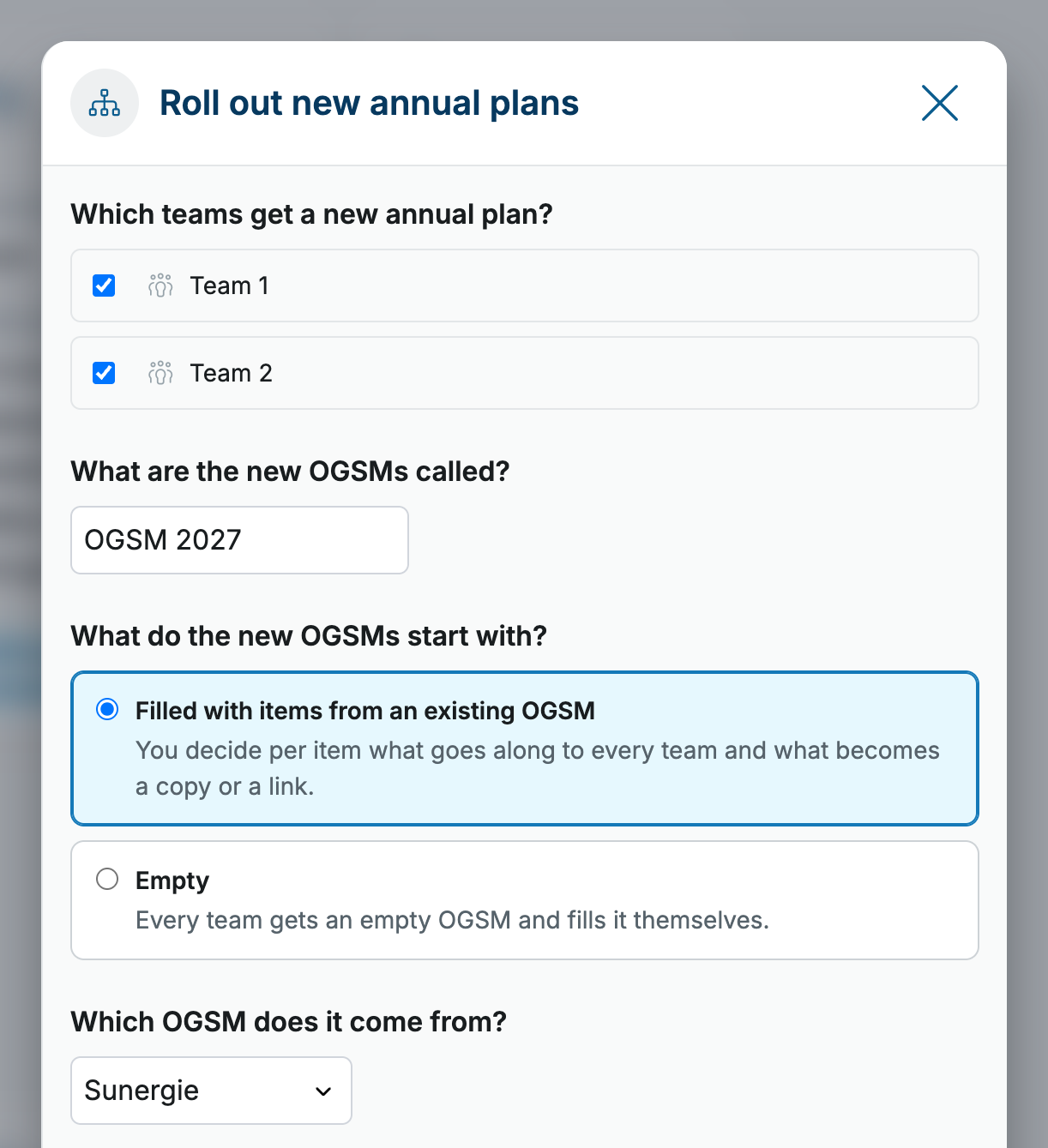
Roll out new annual plans across the organization: As an administrator, you can now set up the draft OGSMs for the new year for several teams at once. In the Manage team menu, choose Roll out new annual plans and select the teams below this team, plus any other teams you administer. For each item you decide what comes along: nothing, a link or a copy. That way every team starts from the same point and then works out its own plan. Read more about starting a new annual plan.
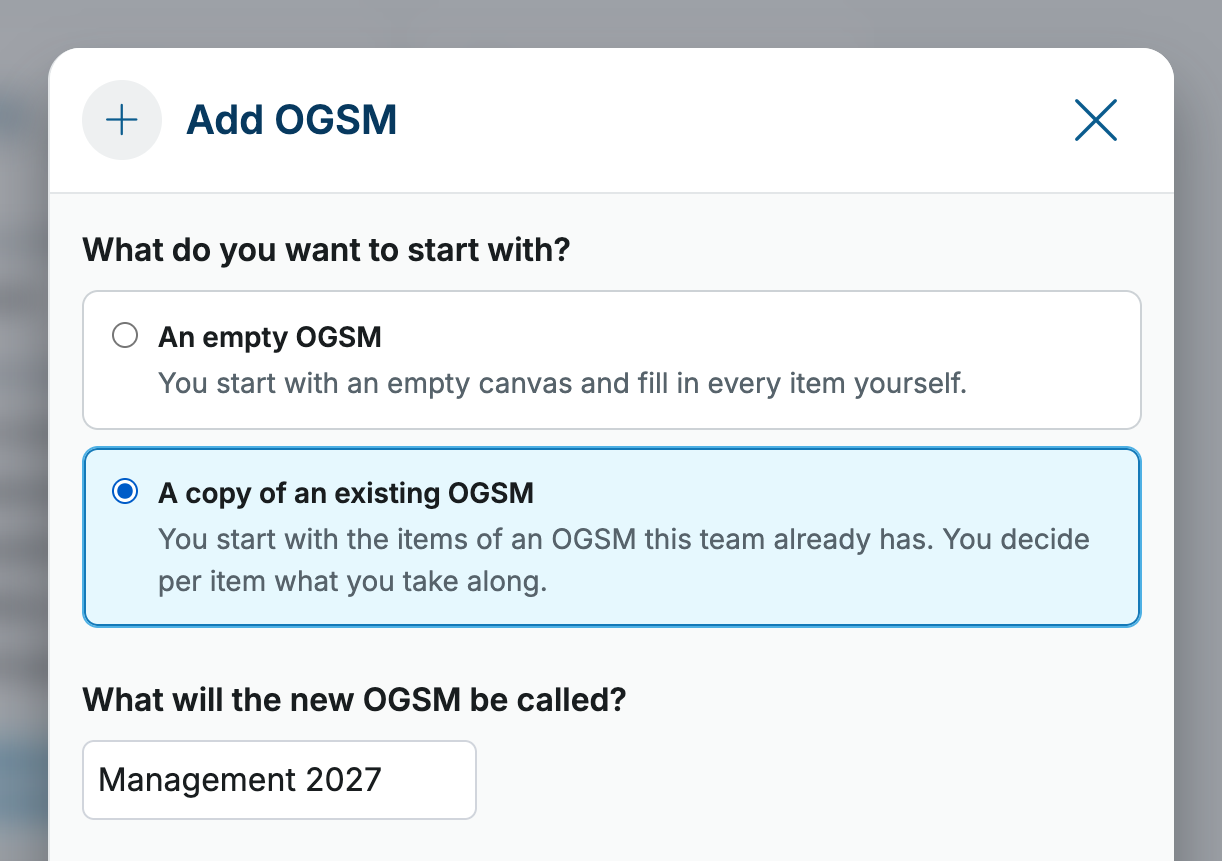
New OGSM: empty or a copy: When you add an OGSM from the team page, you now choose what to start with: An empty OGSM or A copy of an existing OGSM the team already has. With a copy, you decide per item what you take along, just as when you copy an OGSM. So you no longer have to open the current OGSM first to start a new annual plan. Read more about creating an OGSM.
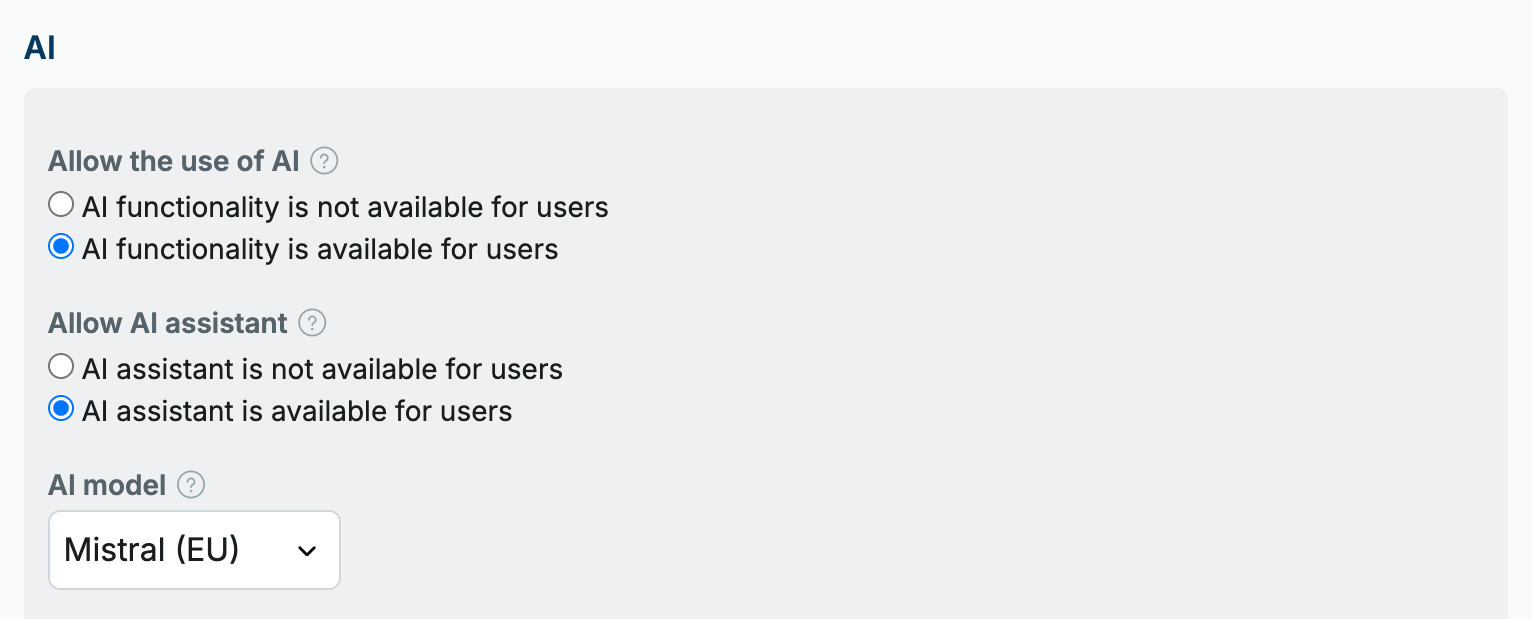
Choose your AI model: The super admin now decides which AI model OGSM.online uses: Mistral (EU), Claude (US) or ChatGPT (US). The choice applies to the AI assistant and to the AI suggestions for titles and new items. Mistral remains the default and works as before. If you choose Claude or ChatGPT, you enter an API key from your own account and the provider bills the usage directly to you. Read more about AI settings.
Improvements: We also made a number of smaller improvements and fixed several bugs.
September 2026
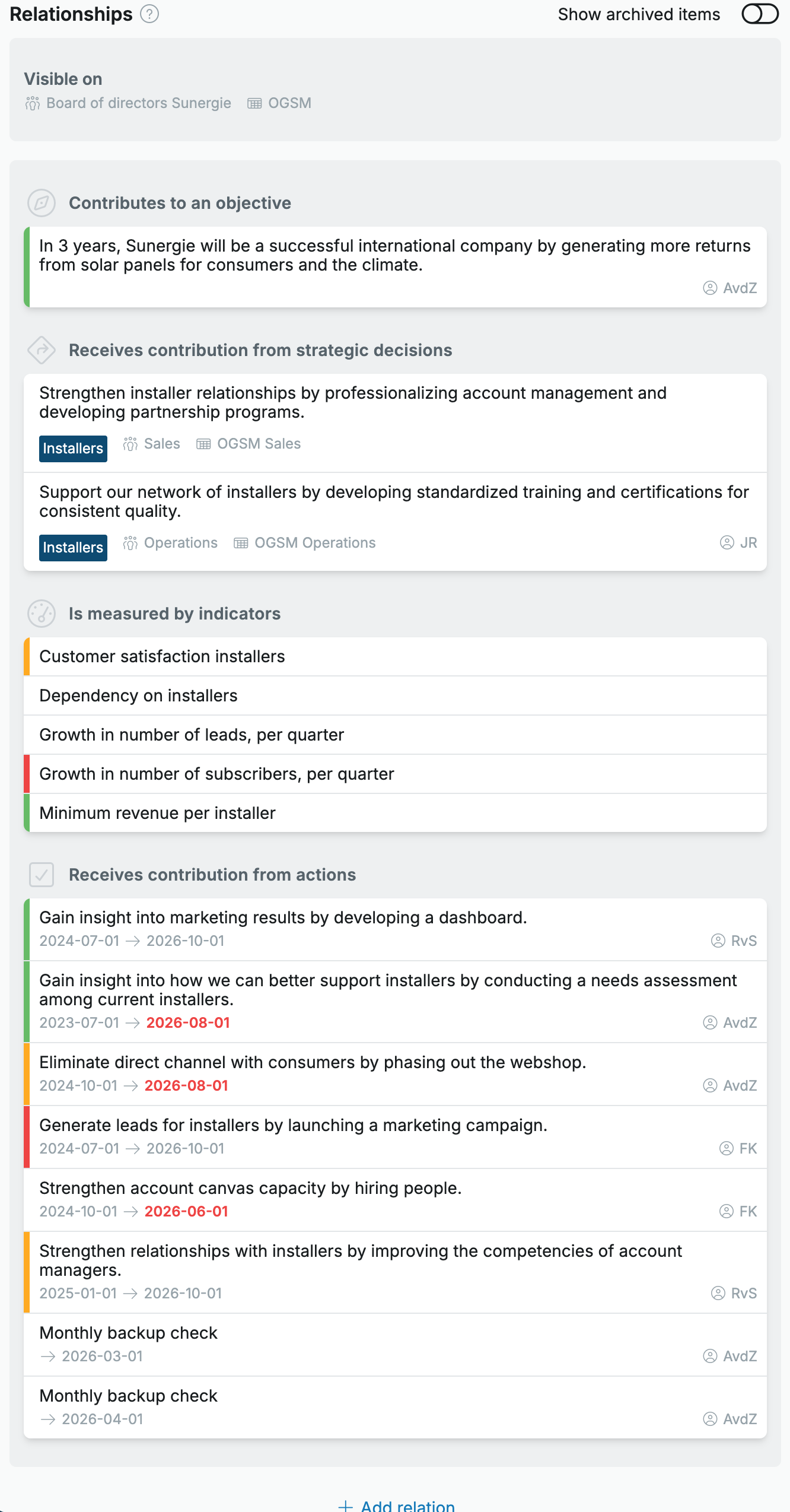
All of an item’s relations in one place: Open an item and the Relationships block shows where it sits and what it relates to. You use that block for two things. First, to show the item on another OGSM, as you already could: Visible on now tells you at a glance which OGSMs it appears on. Second, and this is new, to link the item to another item without changing where it sits. Useful for recording dependencies between actions, so the critical path of your plan becomes visible, or for showing which KPI or goal an action belongs to. You add, edit and remove relations from that same block. Read the article: Linking items to each other.
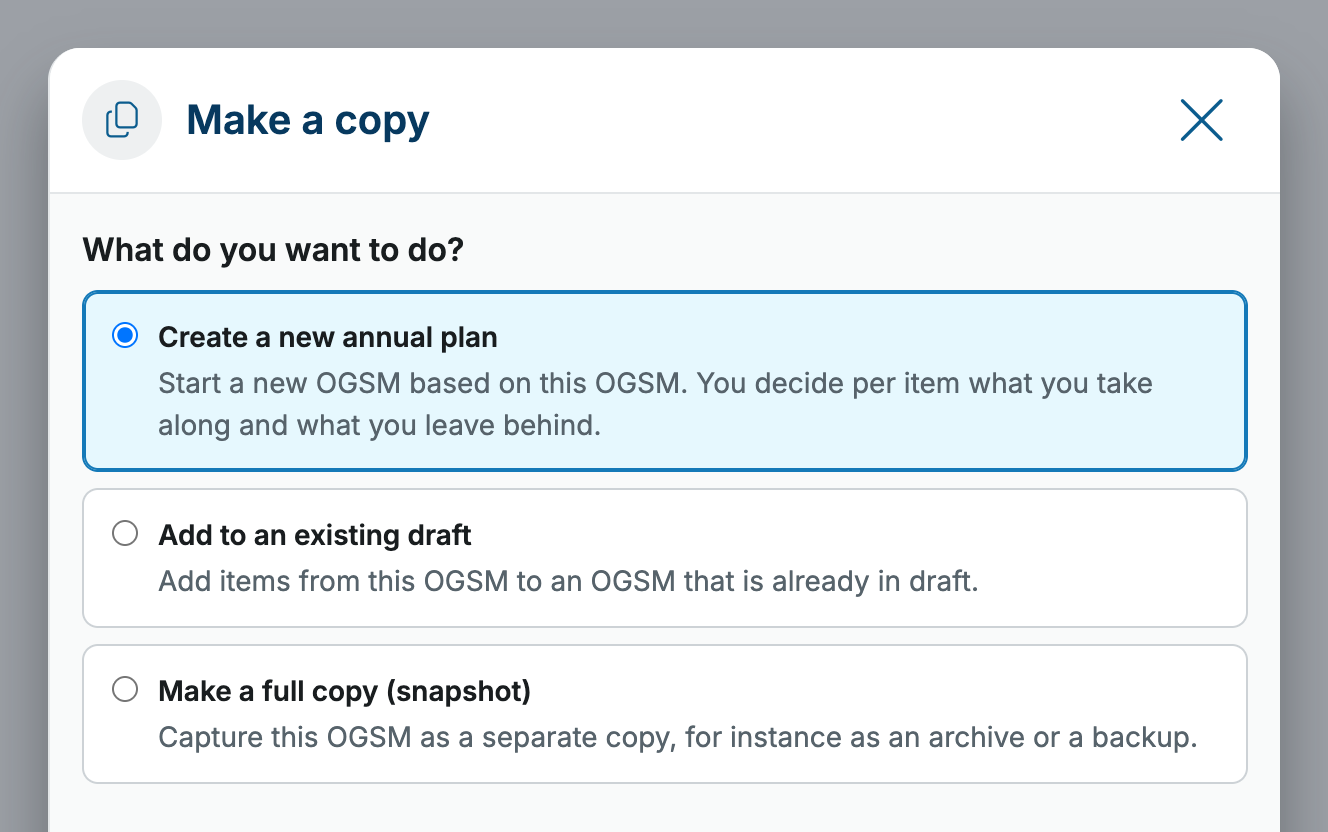
Start a new annual plan from your current one: Annual planning season is coming up, and copying now starts with a single question: what do you want to do? You choose between starting a new annual plan, topping up an existing draft, or making a full copy as a snapshot. For each kind of item you decide whether to copy or link it, and the screen explains what that difference means: a linked item lives on both OGSMs, so a change is visible in both places. The name of the new plan is prefilled with next year, and completed and archived actions are left out. Read the article: Start a new annual plan.
Set the order of your OGSMs and tools: Team administrators can now drag the team’s OGSMs and tools into an order of their own on the Edit OGSMs and tools screen. That order is followed everywhere a single team’s OGSMs are listed, from the main menu to the team dashboard. Read more about adding tools to a team.
Improvements: We also made a number of smaller improvements, including to the AI assistant, the indicator export and the speed of the indicators overview. We also fixed several bugs.
August 2026
AI assistant: attach files: You can now attach files to a conversation with the AI assistant. Useful if part of your plan already exists in an Excel or PowerPoint file and you want to bring it into the OGSM.
AI assistant: better answers: The AI assistant is now better grounded in the structure and methodology of OGSM, so its answers align more precisely with your situation.
Reorder underlying actions: You can now drag underlying actions to change their order on the OGSM and actions screens. This was previously only possible on the detail screen.
Restore filters with one click: Navigate away from an overview and come back later without filters? We now offer to re-apply your previous filters with one click.
Contribution to the parent OGSM: A new view shows which parts your team contributes to the parent team’s OGSM, for example because a strategy has the same label, an item also appears in your own OGSM, or your team has been added as a stakeholder. The parent team’s administrator turns this option on. Read the article: Strategic brief.

Improvements: We also made several smaller improvements, including to the responsive layout of My overview, the print view and accessibility. We also fixed a number of bugs.
July 2026
Collapsible main menu: You can now collapse the main menu to get more screen space. Hover over the collapsed menu and the full menu reappears.
AI assistant: editing OGSMs: The AI assistant can now not only observe and give advice, but also make changes. The assistant always makes a proposal first that you can approve or reject.

Search actions, owners and more: Search can now search the entire OGSM. Click Search in the menu or use the keyboard shortcut j.

Look ahead in the strategy review session: In the strategy review session you look back at the past period and ahead to the upcoming one. In the Strategy review session view you can now select Looking ahead. You then see all planned actions and can add missing actions directly.

Improvements: After last month’s major update, we made many small improvements. We also fixed several bugs.
June 2026
The June 2026 release is the biggest update in a long time. We redesigned the navigation and the personal dashboard, gave sessions their own place and streamlined the report flow. For the details, read the article Update June 2026: new menu, search and more, or watch the short tour.
New navigation: A redesigned main menu with a search field at the top (open it with the j key too) and your pinned teams below it. You decide which teams appear via the My teams page or the team dashboard. Read more in Main menu, Search and My teams: overview of teams.

Renewed My overview and team dashboard: Your personal dashboard now shows your open actions with counters, a block per upcoming session with your preparation status, shortcuts and the latest notifications. The team page has become a dashboard with OGSMs, progress, traffic lights and team members in a single overview. Read more in My overview and Team dashboard.

Sessions and reports linked: For each team you now see all upcoming and past action and strategy review sessions in one list and schedule new ones from there. When adding a progress report, you choose which session it belongs to — the next session of the matching type is pre-filled. Read more in Scheduling action and strategy review sessions and OGSM report.
Smarter report: A traffic light always shows the color of the most recent progress report of an item (the ‘Also show outdated reports’ checkbox is gone). With the option Also show actions without a progress report you supplement the overview with actions that do not yet have a report.
Simplifications: The tabs concept within a team has disappeared — tools now sit directly under the team. The Online document tool has been discontinued and the read marker on the notifications feed has been removed.
April 2026
Navigate to the previous or next action in a recurring action: On a recurring action you now see arrows that take you directly to the previous or next action in the series. Useful if you want to compare progress across multiple periods or plan ahead, without first going back to the overview.

Indicator measurements: You can add up indicator measurements per quarter or per year in the OGSM. Open the indicator and select ‘Sum per quarter/year’ under ‘Compare measurements’.

Print version of the report improved in Edge and Chrome: We have improved the print version of the report in Microsoft Edge and Google Chrome. The layout and page breaks are cleaner, so your report also looks polished on paper or as a PDF.
OGSM import: You can now import a complete OGSM from an Excel file. Useful if you want to quickly move an existing OGSM from another environment or a prepared file into OGSM.online, without retyping every element by hand. The objective, goals, strategies, KPIs, and actions are created on the canvas in one go.

Import of measurements extended with target values: The import of measurements for goals and KPIs was already available: with it you add actual values per period from an external file. From now on you can also set the target values through that same import. That way you keep the planning and the realization in a single workflow.
March 2026
Improved KPI chart: The chart on the detail screen of an indicator has received a new color palette. The colors are now more clearly distinguishable, making it easier to tell measurement values and target values apart.

Aggregate measurements from underlying indicators: You can now add up measurements from underlying indicators per quarter or per year. Say you have an indicator for total revenue, with three underlying indicators per region. You enter the monthly revenue per region, and the parent indicator automatically shows the quarterly or annual totals.

Super Admin and User: OGSM.online has two types of roles: environment roles and team roles. This distinction wasn’t always clear, because the names overlapped. From now on, the environment roles are called ‘Super Admin’ and ‘User’. Your permissions remain exactly the same.
Bugs fixed:
- For recurring sessions, the invitation was not being sent correctly. This has been resolved.
- The OGSM score evaluates your OGSM against a number of criteria. However, we were including archived items in the count, causing the score to be incorrect. These items are now ignored.
- The order of strategies and actions is correct again. In some cases, the order of items had changed unexpectedly. This has been fixed.
February 2026
Switch between views faster: The View menu has been expanded. This allows you to quickly open the right view of the OGSM, actions, or reports.

This month’s other changes are aimed at administrators.
Import measurement values for goals and KPIs: You can now import measurement values from an Excel file. You can find this option via Admin > OGSM under the heading Import and export. This is also where you’ll find the functionality to export all OGSMs. Read more…
User overview: The overview (Management > Users) now also shows the user groups a user belongs to. Want an overview of all roles and permissions? Download the list as an Excel file.
Set permissions in organization structure: When setting up the organization structure (Management > Organization structure), you can now also manage team permissions.
January 2026
Search and select OGSMs and teams faster: In the menu, you see the most recently viewed OGSMs or teams. You can search directly by team or OGSM name. Tip: use the new keyboard shortcut <j> to open the menu.
When you have selected an OGSM, the My teams and Process status pages now automatically show the associated team. You no longer need to select it separately.
Filters are off by default in OGSM view: In the past, we remembered the filters you had set. Many users indicated they prefer to see the entire OGSM by default. You can still filter an OGSM, but we no longer remember the filters.
Configure custom columns for actions: The administrator of the environment can now configure specific statuses. These statuses are visible in the column view of actions. Learn more…

Work faster with keyboard shortcuts: Quickly search for an OGSM with keyboard shortcut <j> and assign an action to yourself with <i>. View all keyboard shortcuts here.
Ask questions about your OGSM to the AI assistant (beta version): The AI assistant is a virtual OGSM consultant. The assistant has access to all OGSMs that you as a user also have access to. The functionality is still in development and must first be activated by an administrator. Learn more…

Step-by-step plan for Process status: As a team administrator, we’re happy to help you set up the action review sessions and strategy review sessions. On the Process status page, you now see a helpful step-by-step plan with instructions.